
Appearance
Your profile & account
Your profile and account settings are personal to you and stay the same in every workspace. Open them from your name at the bottom of the sidebar and choose Account settings.
Profile
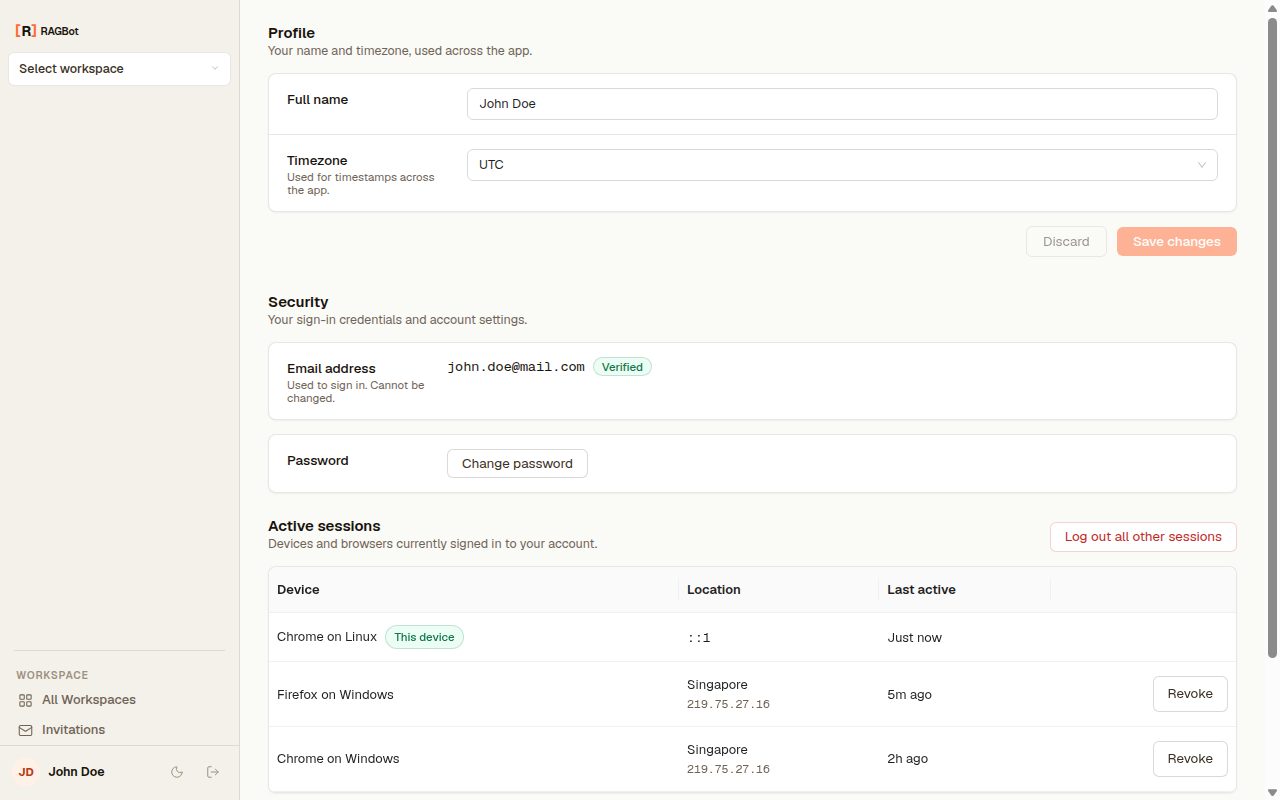
Profile holds the details other people see and the preferences that shape how dates and times appear to you.
- Name — how you're shown to teammates in members lists and on your messages.
- Timezone — set your IANA timezone (for example
Europe/London) and every date and time in the app is shown in your local zone. Leave it unset and times fall back to UTC.
Account
Account is where you manage your sign-in credentials, review where you're signed in, and close your account.
Change your password
Enter your current password, then your new one (8–72 characters). For your safety, changing your password signs you out of every other session — handy if you suspect someone else had access.
Active sessions
Active sessions lists every device currently signed in to your account, so you can spot anything you don't recognize. Each row shows:
- Device — the browser and operating system (for example "Chrome on Windows"). The one you're using now is marked This device.
- Location — an approximate city and country, when available.
- Last active — when that session was last seen.
To sign out a single device, choose Revoke on its row. To sign out everywhere except where you are now, choose Log out all other sessions. Either takes effect right away: the next time that device tries to do anything, it's signed out and has to log in again.
Signing out isn't the only thing that ends other sessions — changing or resetting your password and deleting your account also sign out every other device.
Delete your account
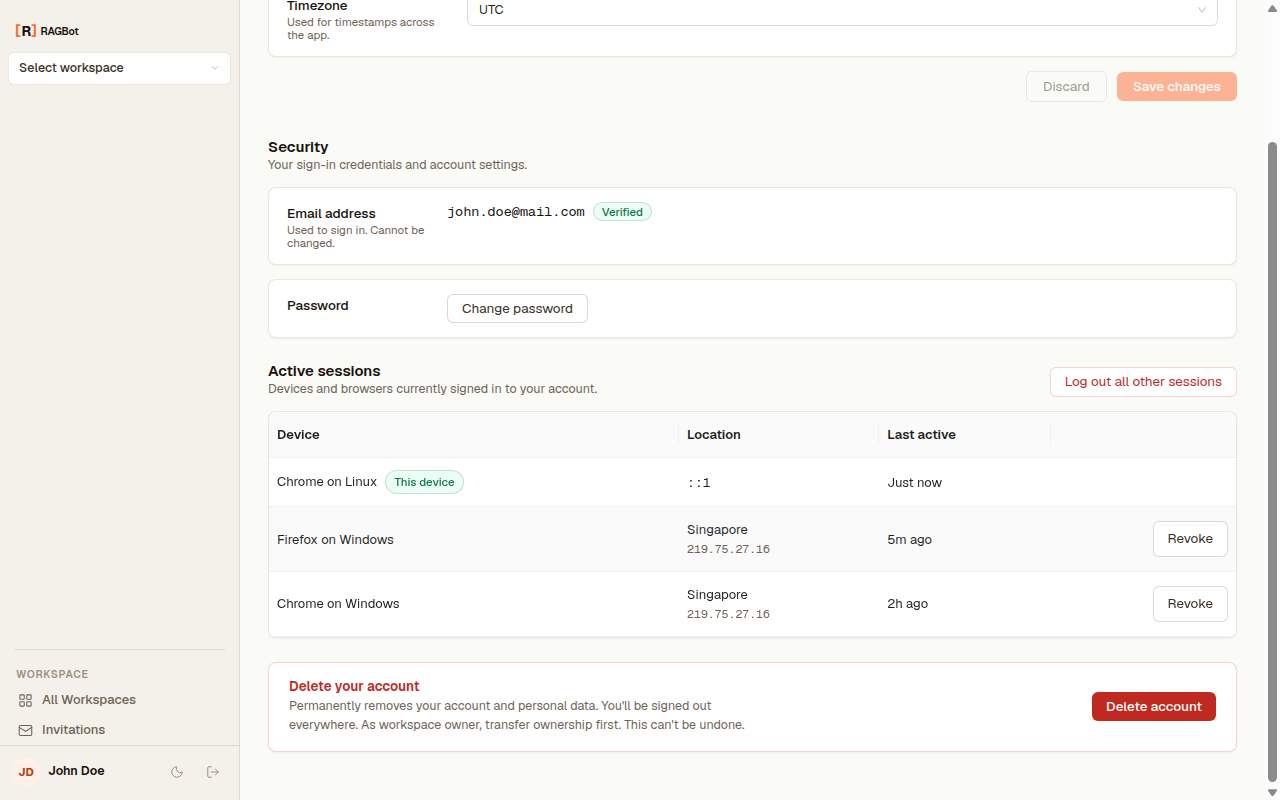
Deleting your account removes your access and signs you out everywhere.
One catch: sole ownership
You can't delete your account while you're the only Owner of a workspace — that would leave it orphaned. First invite someone else and make them an Owner (or delete the workspace), then delete your account.
Light & dark mode
RAGBot follows your preference for a light or dark interface. Use the theme toggle in the sidebar to switch; your choice is remembered on that device. The documentation site you're reading has its own toggle, too.
Invitations to other workspaces
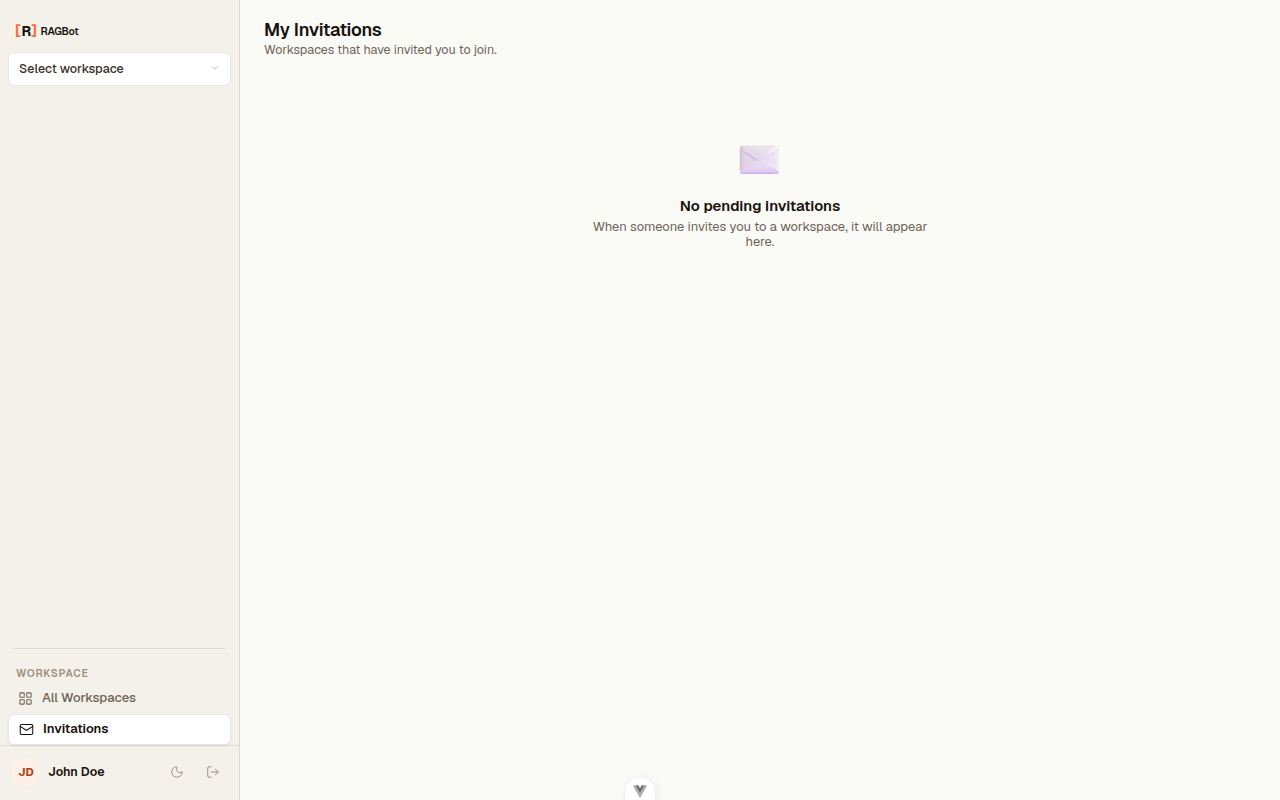
When someone invites you to their workspace, the invitation shows up under Invitations in the sidebar. Until you have any, that screen simply reads "No pending invitations."